- Read each field's format, dimensions and size range before editing.
- Choose the tool for the actual problem; you rarely need all five.
- Set dimensions before the final compression and preserve them when required.
- A maximum KB target does not enforce a portal's minimum file size.
- Open the saved image or PDF and inspect it before submitting.
Start with the upload requirements
An upload error can mean the file is too large, the dimensions are wrong or the portal wants a different format. Those are separate problems. Reducing everything to the smallest possible file can leave you with a blurry image that still does not meet the form's rules.
The reliable approach is to read the requirements, keep the original, make only the necessary changes and inspect the saved result. This guide shows where each of Knit Infotech's five image tools fits. You will usually need one or two of them, not all five.
Before editing, write down the requirements for each upload field:
- Accepted format, such as JPG, PNG or PDF.
- Required width and height, including whether they are pixels or physical units.
- Minimum and maximum file size, if both are specified.
- Framing, background, orientation and readability requirements.
- Whether the portal requires live photo capture instead of an existing image.
Check the current instructions for the exact application. A signature field and a document field on the same form can have different rules. Keep this note beside the upload screen so you do not prepare the right file for the wrong field.
Choose the tool that matches the problem
| What needs changing? | Use this tool | What it does not establish |
|---|---|---|
| The file is PNG or WebP but the form wants JPG | Image Converter | Conversion alone does not set the required dimensions or KB range |
| The image has the wrong pixel width or height | Image Resizer | Correct dimensions do not guarantee the required file size |
| The dimensions are suitable but the file exceeds a KB limit | Image Compressor | A maximum-size target does not enforce a portal's minimum size |
| A signature needs cropping, framing and a chosen output size | Signature Resizer | A preset or successful download does not guarantee acceptance |
| Several image pages must become one PDF | JPG to PDF Converter | The result does not add OCR or automatically meet a PDF upload limit |
The tools accept JPG, PNG and WebP images. They do not provide HEIC conversion, PDF editing or text recognition. If your phone supplied a HEIC image, export an accepted image format using software that supports it before opening these tools. Renaming the extension does not convert the file.
Convert the format when the form requires it
Use the Image Converter when the source is readable but saved in the wrong image format. Choose the required output format, review the preview and download the converted file.
JPEG and JPG name the same image format. PNG supports transparency and lossless image storage; JPEG uses lossy compression and has no transparent background. The MDN image-format guide explains those differences. A portal's accepted formats still decide which one you should submit.
If you convert a transparent PNG to JPEG, choose a suitable solid background and check the edges of the image. A signature or pale logo can look different after transparency is removed. Use white where the receiving form requires white.
Changing the format may change the file size, but it does not promise a particular result. Keep the highest-quality original available so later adjustments do not start with an already degraded copy.
Resize the dimensions without distorting the image
Open the Image Resizer when the width or height is wrong. Enter the required pixel dimensions. Leave the aspect ratio locked when you want to preserve the original proportions while changing one dimension.
If the form requires a box with a different ratio, unlock the ratio to enter both dimensions and review the available fit modes:
| Fit mode | What happens | What to inspect |
|---|---|---|
| Pad / Letterbox | The whole image fits inside the box, with spare space filled around it | Are the margins acceptable to the form? |
| Crop to Fill | The box fills without stretching, and some edges may be cropped | Did it cut off a face, signature stroke, seal or document text? |
| Stretch to Fill | Width and height change independently | Has the face, handwriting or text become distorted? |
For identity images and signatures, avoid distortion. If none of the fits gives a clear, correctly framed result, prepare a better source image rather than forcing it into the box.
Percentage scaling is useful when you want the same shape at a smaller size. An exact-dimensions upload should be checked by its final width and height, not by the percentage used to get there. Enlarging a tiny image also cannot restore missing detail.
Pixels and centimetres need different checks
Pixels describe the image's digital width and height. Centimetres describe a physical size that also depends on resolution metadata. A centimetre requirement does not identify one universal pixel pair on its own.
These browser tools set pixel dimensions; they are not a dedicated DPI or print-metadata editor. MDN's canvas export documentation describes how browser exports handle resolution metadata. If a form checks physical size or DPI, confirm that requirement separately instead of assuming a matching-looking preview satisfies it.
Compress the file after setting its dimensions
Use the Image Compressor for the final KB adjustment. Choose the format accepted by the form, then select a size preset or Custom for a different maximum. Review the resulting image and the actual output size before downloading.
If the dimensions must stay fixed, keep the starting resolution at Original size and turn off further downscaling. That prevents the size search from solving a KB problem by making the image smaller in pixels. If the target cannot be reached clearly at those dimensions, start with a better source or review the form's permitted alternatives.
JPEG quality reduction can reduce file size at the cost of detail. PNG does not respond to a lossy quality slider in the same way. That is why changing a quality value can have little effect on a PNG. Do not switch formats unless the portal accepts the alternative.
A maximum is not a complete size range
A target of 20 KB means the tool tries to stay below that ceiling. It does not mean the output will be exactly 20 KB, and it does not enforce a minimum of 10 KB. If a form asks for 10–20 KB, an 8 KB result still needs attention.
Check the saved file, not just the rounded number shown in a preview. Leave a little room below a strict upper limit because file managers and portals can display or count KB differently. The portal's own validation remains the final check.
If the file is below a stated minimum, return to the original and use less aggressive compression or larger dimensions only where the instructions permit. Avoid repeated low-quality exports, filename tricks or arbitrary data padding. The final image still has to be genuine, readable and within every stated requirement.
Prepare a signature with its own crop and size settings
The Signature Resizer combines the relevant steps for handwriting. Start from a clear photo or scan of your own signature on suitable paper. Use the signature required by the form; an example squiggle or generated signature is not a substitute.
- Choose the image and use Select area to frame the handwriting.
- Leave enough space to preserve the first and last strokes. Remove unrelated paper, shadows and objects from the crop.
- Enter the output width and height specified by the form. The default dimensions are a starting setting, not an official exam preset.
- Choose JPEG with a solid background when that is what the portal asks for. Use PNG only if permitted.
- Set a maximum KB value if needed. Inspect thin strokes before and after any paper-cleaning or contrast adjustment.
- Download, reopen the file and check dimensions, legibility and both ends of any required KB range.
Paper cleaning can remove pale ink as well as background noise. If a stroke disappears, turn cleaning off or reduce the adjustment. Stronger contrast is not automatically a better signature.
What to do with SSC signature instructions
Use the current exam notice, corrigenda and application help rather than an assumed universal SSC preset. One documented example shows why: the Phase-XIV/2026 Selection Posts notice specifies JPEG/JPG and 10–20 KB. Section 11.10 on printed page 14 gives approximately 6 × 2 cm; the annexure on printed page 51 gives 4 × 2 cm. The same notice uses live photo capture for the photograph.
That notice's application window ended on May 4, 2026. It is an example of conflicting instructions, not a current application announcement. If your applicable instructions disagree, check for an official clarification and contact the exam helpdesk. This guide cannot resolve that conflict or prescribe one pixel size for every SSC application.
Combine image pages into a PDF only when requested
Use the JPG to PDF Converter when a document field requests one PDF assembled from image pages. It accepts JPG, PNG and WebP inputs despite the tool's short name.
Add the pages, arrange the thumbnails in reading order and rotate any sideways image. Choose A4, Letter or Fit to Image according to the receiving instructions. Check orientation and margins, then create the PDF.
Open the saved PDF and inspect every page. Look for clipped seals, unreadable small print, missing pages and the wrong order. Confirm the PDF's total file size after conversion; the converter has no automatic target-KB guarantee for the final document.
If it is too large, return to the source images and reduce unnecessary resolution or quality carefully before making the PDF again. Stop if text becomes hard to read. Adding a photo to a PDF does not make the text searchable, and this converter does not add OCR. If searchable text or an accessible document is required, use a suitable document workflow.
Do not turn a JPG-only photo field into a PDF simply because another part of the form accepts PDF. Prepare each upload for its own destination.
A worked example: three fields on one form
The following requirements are invented to illustrate the process. They are not SSC rules or settings to copy into another application.
| Example field | Fictional requirement | Practical route |
|---|---|---|
| Profile image | JPG, 600 × 600 pixels, 50–100 KB | Convert only if needed, resize with a suitable fit, then compress without further downscaling; check the minimum too |
| Signature | JPG, 300 × 100 pixels, 10–20 KB | Crop in Signature Resizer, set the stated dimensions and ceiling, then inspect strokes and actual saved size |
| Two document pages | One A4 PDF below 2 MB | Prepare readable page images, arrange them in JPG to PDF, then inspect both pages and the total PDF size |
Keep the originals in one folder and the final versions in another. Use simple filenames that make it easy to choose the correct file, such as photo-final.jpg and signature-final.jpg. Apply any naming instructions from the portal. A clear filename helps selection; it does not change the file's contents or dimensions.
Fix the error you are actually seeing
| Problem | First check | Next step |
|---|---|---|
| File type not allowed | Is the actual image type accepted, or was only the extension renamed? | Export the required format using Image Converter |
| File exceeds the size limit | Are the dimensions already correct? | Compress with those dimensions preserved and recheck the saved file |
| File below the minimum size | Did compression go further than required? | Restart from the original with gentler settings; keep the permitted dimensions |
| Wrong dimensions | Did the final export keep the requested width and height? | Resize, then avoid further downscaling during compression |
| Blurry signature or document | Is the source sharp, and did cleaning erase detail? | Use a better source and reduce destructive adjustments |
| PDF is too large or sideways | Were the pages checked after conversion? | Correct source images, order and orientation, then rebuild the PDF |
| Image tool cannot open the file | Is it HEIC, a PDF or an oversized image? | Export a supported image first and check the tool's input limits |
| File looks compliant but upload still fails | Is the correct field selected, and are the session and network working? | Re-read the full message and use the portal's official help; do not assume compression fixes every upload error |
Privacy and the final check before submitting
Files selected from your device are processed in your browser tab; these tools do not upload the selected images to Knit Infotech's server for processing. If you choose Google Drive import, Google sends the selected files to your browser after you grant access. Your saved downloads remain wherever your browser places them.
Before submitting, reopen each final file. Confirm the format, dimensions, file-size range, framing and readability. For PDFs, check the page count and order as well. After uploading, inspect the portal preview and follow its submission instructions. A successful local export is not an application-acceptance guarantee.
You can return to the free tools directory to choose the next operation. Use only the changes your file needs and keep a readable original available.
How this guide was prepared
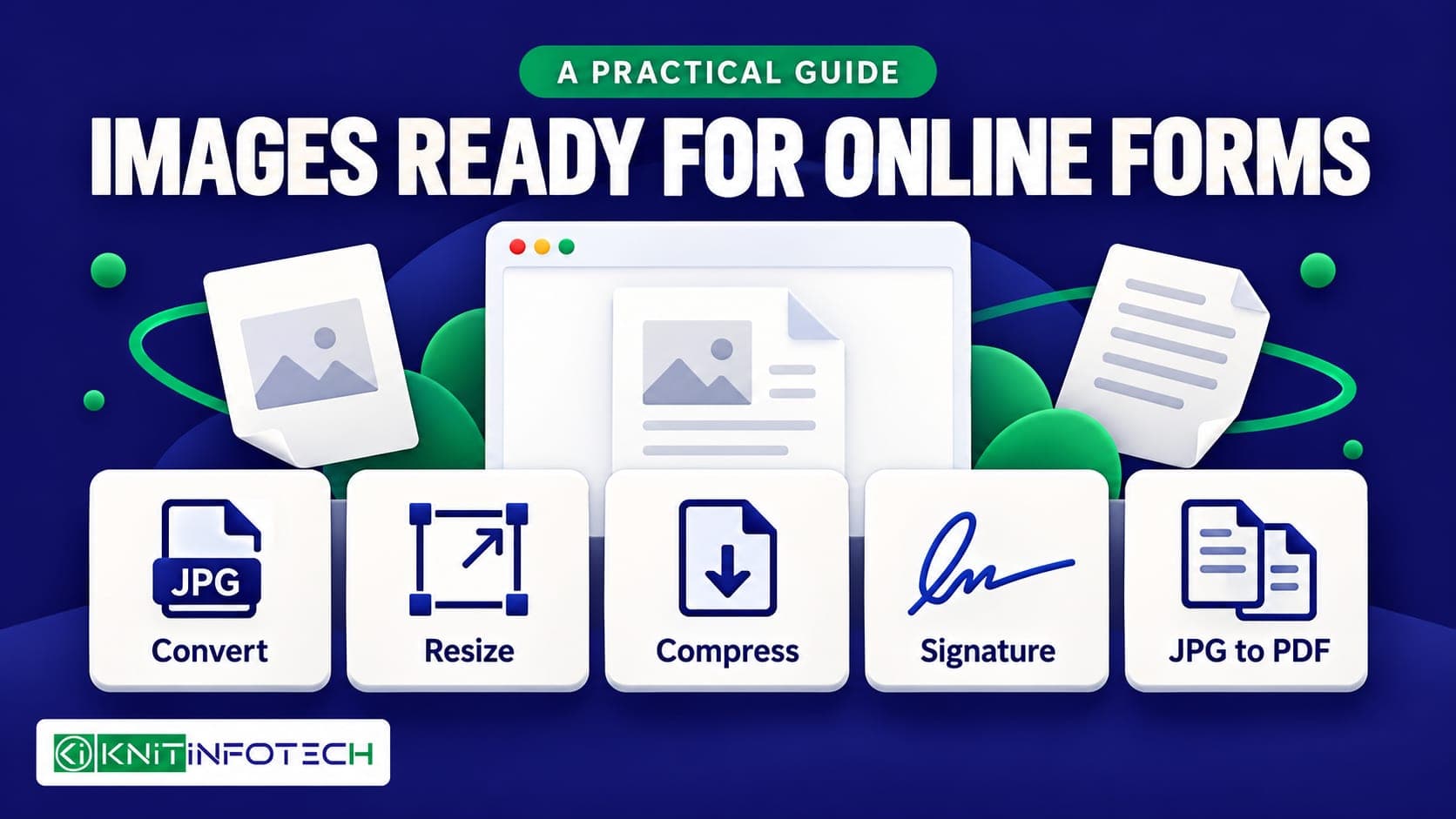
This guide was prepared with AI-assisted research and drafting, using the linked technical references, the official notice example and the tools' current implementation. Sources were checked on October 21, 2026. The worked form is fictional, and the cover is an illustration rather than a portal screenshot. Application rules belong to the receiving institution and must be checked for the specific form.
Questions
How do I compress an image to 50 KB or 100 KB?
Open the Image Compressor, select the accepted output format and choose the 50 KB or 100 KB preset. Use Custom for another ceiling. If dimensions must stay fixed, choose Original size and disable further downscaling. Check the actual saved size and readability: a preset is a maximum target, not a promise of an exact size or a minimum.
Should I resize an image or compress it first?
Set the required dimensions first, then make the final file-size adjustment. If the dimensions must stay fixed, disable further downscaling in the compressor. Check the saved output against both requirements.
Can one file be the right dimensions and still fail an upload?
Yes. Format, pixel dimensions, file size, framing and readability are separate checks. A file can also be below a required minimum size. Read the exact error message before choosing another edit.
Can I rename a PNG to JPG instead of converting it?
Renaming the extension does not convert the image data. Use the Image Converter to export JPEG, then inspect the saved file and its background.
Does a 20 KB target produce an image between 10 and 20 KB?
No. It sets a maximum target, not a minimum or an exact output size. A result below 10 KB can still fail a form that requires 10–20 KB. Check the actual saved size and adjust from the original if needed.
Can these tools convert HEIC or edit an existing PDF?
No. The image inputs are JPG, PNG and WebP. Export HEIC to a supported image format using suitable software first. JPG to PDF builds a PDF from images; it does not edit an existing PDF or add OCR.
Are images uploaded to Knit Infotech during processing?
Images selected from your device are processed in your browser tab. These tools do not upload them to our server for processing. Optional Google Drive import retrieves the selected images from Google after you grant access.
Sources
- MDN: image formats, JPEG, PNG and transparency
- MDN: browser canvas export, quality and resolution metadata
- SSC Phase-XIV/2026 notice: signature instructions, printed page 14
- The same SSC notice: conflicting annexure dimensions, printed page 51

Sam K (Santosh Kumar) founded Knit Infotech in 2013. Based in Noida, he works on web applications, ecommerce, CRM systems and workflow automation. He helps clients agree the scope and technical decisions behind a build.